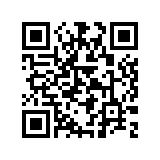
Connecting to VisitorNet wireless

Connecting to VisitorNet Wi-Fi should be easy and the service has been designed to work with a wide variety of wireless devices.

There are two steps to the process. Firstly connect to the Bristol-VisitorNet Wi-Fi signal, and then then type in your personal username and password:

Connect to the Bristol-VisitorNet signal

Bristol-VisitorNet is a ‘WPA’ network. This means you will need a network key, which will have been given to you with your personal username and password.
  1. From the list of available networks, choose Bristol-VisitorNet and click Connect.
  2. When you are asked for the network key, type it in (N.B. This may be referred to as the “WPA Password” on some computers).
  3. Your device should now associate with the Bristol-VisitorNet network.

Enter your personal username and password

  1. Open your web browser – you should get redirected to a login screen.
    (if you are not redirected go to this web page: http://10.0.254.254/login.html )
  2. Enter your personal username and password into the appropriate boxes (use lower case only).
  3. Click the Submit button – You should then be redirected to the University’s home page. You can now use the internet. You do not have to keep your web browser open. If you are not redirected to the University’s homepage, try entering your personal username and password again.
Your username and password will be valid for a maximum of 7 days from the time you first login.

Having problems?

VisitorNet is designed to be very simple to connect to, like most Wi-Fi in coffee shops, or commercial conference venues. If you still can not get connected after following the above instructions, a brief list of troubleshooting tips is available.

Security Warning
The Bristol-VisitorNet wireless network does not guarantee any effective encryption at the wireless layer.
  • It is recommended that that you do not use this service to convey personal, confidential or sensitive data without using a natively secure transfer protocol such as TLS or SSL (HTTPS, IMAPS, SSH etc).
IPv6 ready!
38.107.179.224 at 14:35, 16 May 12